

You didn’t build a WordPress site to spend your mornings manually sending welcome emails, copying form submissions into spreadsheets, or remembering to push new posts to social media. Yet, that’s exactly where most site owners end up — buried in the same five tasks every single week.
The good news? Every one of those tasks can run itself. No developer required.
No-code automation has moved well beyond tech circles. Today, independent bloggers, WooCommerce store owners, and small business site managers are using it to reclaim hours every week — without touching a line of code. This guide walks you through what no-code automation actually is, what it can do for your WordPress site, and the five tools worth your time in 2025.
TL;DR — What You’ll Get From This Guide
- A clear, jargon-free explanation of no-code automation
- Why most site owners underestimate it (and overpay for what they don’t need)
- 5 automation tools ranked for different WordPress use cases
- A pre-automation audit checklist to identify what’s actually worth automating
- FAQs targeting the most common beginner questions
So, What Exactly Is No-Code Automation? (And Why WordPress Owners Are Obsessed With It)
The Plain-English Definition: Workflows That Run Without You
No-code automation is the ability to build software workflows — where one event automatically triggers a series of actions — without writing any code. Instead of scripting logic manually, you use visual builders, drag-and-drop interfaces, and pre-built connectors to wire up your tools.
Short definition (snippet-optimised): No-code automation is a method of building digital workflows using visual interfaces rather than programming. It connects apps, triggers actions, and handles repetitive tasks automatically — no developer or coding knowledge needed.
For WordPress site owners, this means: when someone submits a contact form, your CRM gets updated, a Slack notification fires, and a follow-up email goes out — all without you lifting a finger.
TL;DR — What No-Code Automation Does for Your WordPress Site
It removes the human from repetitive digital tasks. Anything that follows a predictable pattern — form submissions, post publishing, user registration, order confirmation — can be automated. For social media workflows, creators may also download Instagram reel content for reference, repurposing, or planning future posts.
How It’s Different From Traditional Development?
Traditional automation required a developer to write scripts, maintain them, debug edge cases, and update them when APIs changed. No-code platforms handle all of that in the background. 90% of SMB owners will be actively using no-code tools in 2026.
The shift is significant for non-technical site owners who previously had two choices: hire someone or do it manually. Now there’s a third option — and it’s the fastest one.
The Core Idea: Triggers, Conditions, and Actions Explained Simply
Every automation workflow follows the same three-part structure:
- Trigger: Something happens (a form gets submitted, a new post is published, a user signs up)
- Condition: Optional filter (only if the form tag is “VIP client”, only if the order total exceeds $100)
- Action: Something is done automatically (add to email list, notify via Slack, update a Google Sheet)
Once you understand this pattern, you can build almost any workflow — even complex multi-step ones — without writing a single line.
What Most Blogs Won’t Tell You About No-Code Development Platforms
The Misconception That No-Code Means No Power
A common assumption is that no-code tools are “lite” versions of the real thing. That’s no longer accurate. Platforms like Make and n8n handle multi-step logic, conditional branching, error handling, and API integration at a level that would take a developer days to build manually.
The difference isn’t power — it’s ceiling. For 90% of WordPress admin workflows, no-code tools do everything you need.
When No-Code Automation Falls Short — Be Honest About Limits
No-code automation isn’t a silver bullet. It struggles with:
- Complex custom logic that requires deeply nested conditionals
- High-frequency, data-heavy workflows that hit API rate limits on lower pricing tiers
- Proprietary internal systems without public API access
If your automation needs exceed what a visual builder can handle, you may need a developer to write a webhook handler or custom plugin. But that’s a small percentage of typical WordPress use cases.
The Real Difference Between No-Code, Low-Code, and Full-Code for Site Managers
| Type | Who Uses It | Skill Required | Flexibility |
|---|---|---|---|
| No-Code | Site admins, bloggers, solopreneurs | None | Medium-High |
| Low-Code | Marketers, junior devs | Basic logic | High |
| Full-Code | Developers | Programming | Maximum |
For most WordPress admins, no-code covers everything from basic notifications to complex multi-app workflows. Low-code comes into play when you need custom PHP hooks or plugin modifications.
Tool #1 — Zapier: The WordPress Automation Workhorse Non-Developers Trust
What Zapier Actually Does for Your WordPress Site (Beyond the Basics)
Zapier connects 6,000+ apps through pre-built “Zaps” (trigger + action pairs). For WordPress, this means connecting your site to everything — CRMs, email platforms, project management tools, Google Workspace, and more — without installing a separate plugin for each integration.
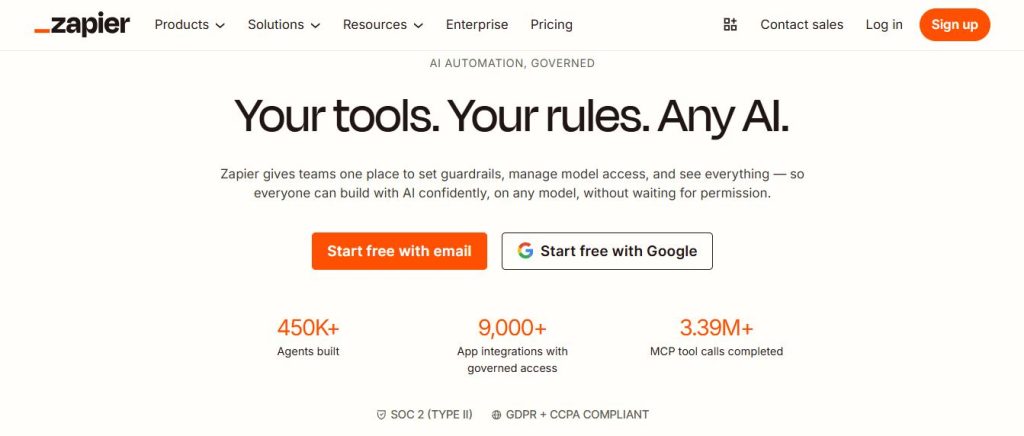
It’s not just about simple “if this, then that” chains. Zapier supports multi-step Zaps, filters, formatters, and delay steps that let you build genuinely useful workflows.
3 Practical Zaps Every WordPress Admin Should Set Up Today
- New contact form submission → Add to Mailchimp/ConvertKit list + notify via Slack
- New WooCommerce order → Log to Google Sheets + send personalised thank-you via Gmail
- New WordPress post published → Auto-share to LinkedIn + Buffer queue
These three alone save the average content site owner 3–5 hours per week.
Where Zapier Excels vs. Where It Gets Expensive
Zapier’s free plan is limited to single-step Zaps and low task volumes. The moment you need multi-step Zaps or higher task counts, pricing jumps quickly. For high-volume sites or complex workflows, the cost can become harder to justify.
If cost becomes a constraint, there are strong Zapier alternatives worth evaluating before committing to a paid plan.
Tool #2 — Make (Formerly Integromat): Visual Automation That Actually Makes Sense
Why Make’s Visual Flow Builder Changes How You Think About Automation
Make takes a different approach from Zapier. Instead of a linear list of steps, it shows you a visual map of your entire workflow — modules connected by lines, data flowing between them like a diagram.
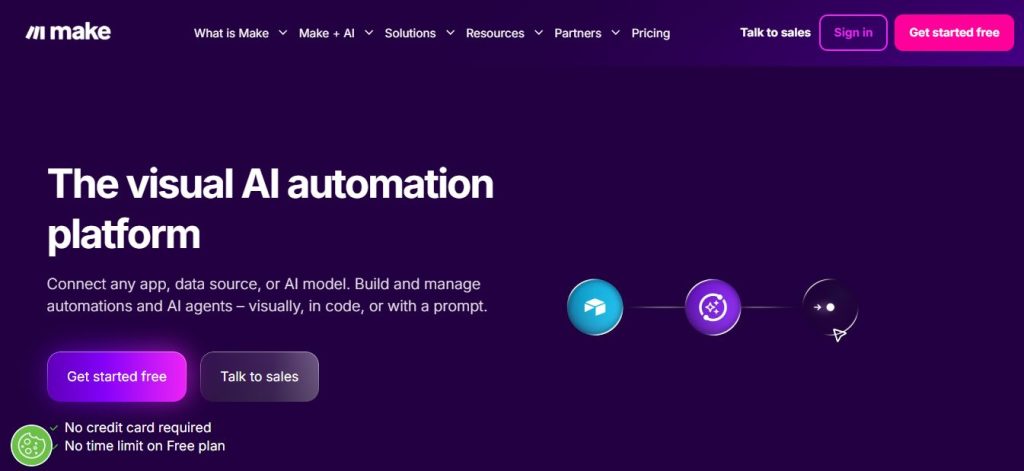
This isn’t just aesthetic. It makes complex logic — branches, loops, multiple triggers — dramatically easier to understand and debug. For anyone who’s tried to mentally trace a 12-step Zapier workflow, Make’s visual canvas is a revelation.
WordPress + Make: The Scenarios That Save the Most Time
- Syncing WooCommerce orders to an external inventory or CRM system
- Routing contact form submissions to different team members based on topic
- Publishing content pipelines: Google Doc approval → WordPress draft → social post queue
Make vs. Zapier for WordPress Admins — Quick Side-by-Side
| Feature | Zapier | Make |
|---|---|---|
| Visual builder | Linear | Visual canvas |
| Free plan | 5 Zaps, 100 tasks/mo | 1,000 ops/mo |
| Complex logic | Limited | Excellent |
| Learning curve | Low | Medium |
| Best for | Quick, simple Zaps | Multi-step, complex flows |
For teams running content operations or WooCommerce stores with complex order logic, Make often becomes the better long-term choice. Pair it with a best low-code integration platform overview if you’re evaluating beyond automation-only tools.
Tool #3 — WP Webhooks: The Native WordPress Automation Layer Most Skip
Why WP Webhooks Is Underrated in the No-Code Conversation
Most no-code automation tools connect to WordPress from the outside. WP Webhooks is different — it lives inside your WordPress installation and speaks the language of WordPress hooks natively. That means tighter, more reliable event detection without relying on polling or external connectors.
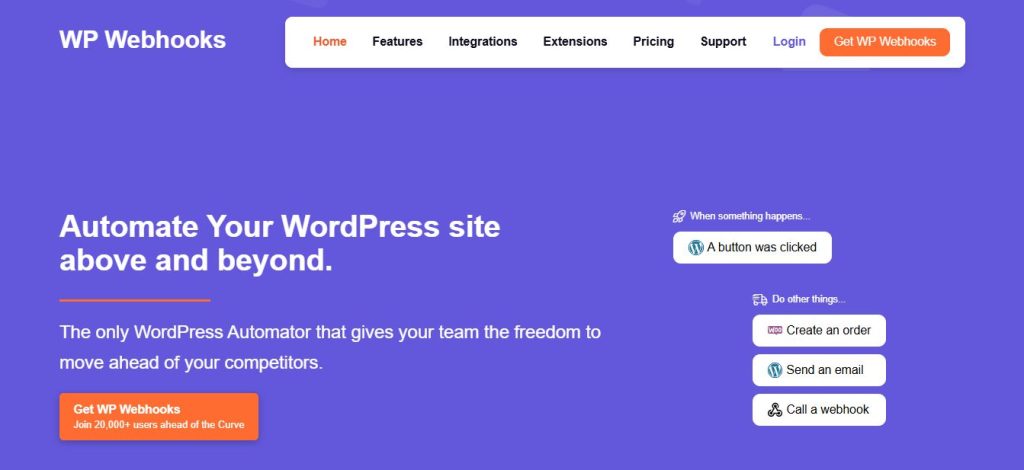
For site owners who want precision automation without full dependency on a third-party platform, it’s worth knowing.
Real Use Case: Auto-Syncing User Registrations, Form Entries, and Post Updates
With WP Webhooks, you can fire outbound data from WordPress the moment something specific happens:
- A new user registers → push data to your CRM
- A Gravity Form submits → trigger a workflow in Make or n8n
- A post status changes to “published” → notify a Slack channel
This works both ways — WP Webhooks can also receive data, letting external platforms update your WordPress site directly.
How WP Webhooks Connects to External No-Code Platforms Without a Developer
The plugin acts as a middleware bridge. You configure send/receive triggers inside WordPress, then point them at Zapier, Make, n8n, or any platform that accepts webhook URLs. No API keys, no custom code.
If you want a deeper walkthrough on setting up webhooks in WordPress without getting into technical territory, smartphp.net covers WordPress admin workflows and no-code integrations in practical, step-by-step guides built specifically for site managers.
Tool #4 — Uncanny Automator: The WordPress-Specific Automation Plugin Pros Use
What Sets Uncanny Automator Apart From Generic No-Code Tools
Uncanny Automator doesn’t try to compete with Zapier. It operates entirely inside WordPress and was built specifically for the WordPress ecosystem. Its real edge is deep compatibility with the plugins you already use — WooCommerce, Gravity Forms, LearnDash, BuddyBoss, Elementor, and more.
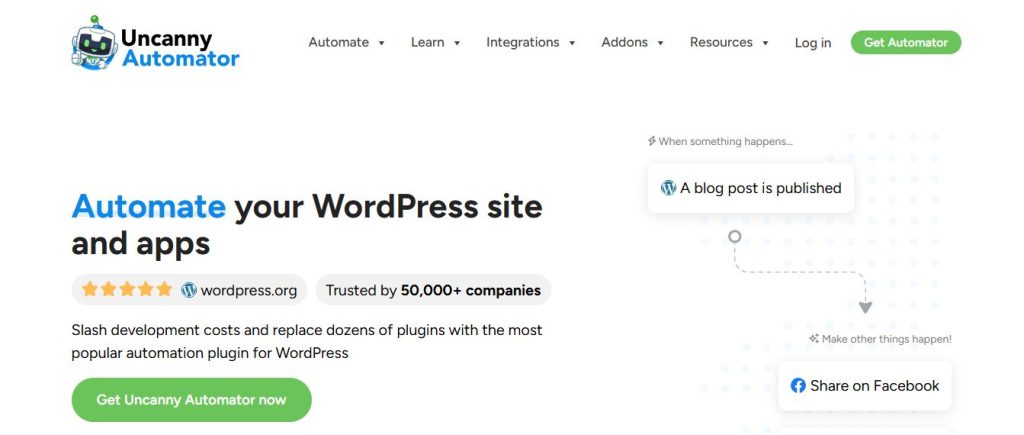
For site owners running LMS platforms, membership sites, or complex WooCommerce setups, this is often the most reliable choice.
Best Recipe Combinations for WordPress Admins (Forms + LMS + WooCommerce)
Uncanny Automator calls its workflows “Recipes.” Here are three that deliver real impact:
- LearnDash course completed → Award badge + trigger email sequence in ActiveCampaign
- WooCommerce subscription renewed → Enroll user in new course + post to Facebook group
- Gravity Form submitted → Create new WordPress user + send welcome email automatically
These would take a developer hours to wire up manually. In Uncanny Automator, they take minutes.
Trigger Events and Actions That Replace Entire Manual Workflows
The plugin currently supports 100+ triggers and actions across the WordPress plugin ecosystem. For admins managing high-touch user journeys — onboarding, course completion, subscription changes — this level of native WordPress event access is hard to replicate with external tools.
Pricing Reality Check: Is It Worth It for Small Sites?
The free version covers basic single-site automation. The Pro plan unlocks multi-site support, pro integrations (like Twilio, HubSpot, ActiveCampaign), and anonymous recipe triggers. For WooCommerce and LMS site owners, the ROI is typically clear within the first month.
For smaller content-only sites with no WooCommerce or LMS dependency, Zapier or Make may be a better-fit starting point.
Tool #5 — n8n: Open-Source No-Code Automation for the Self-Hosted WordPress Owner
Why n8n Appeals to Privacy-Conscious and Budget-Focused Site Owners
n8n is an open-source workflow automation platform that you can self-host on your own server. There are no per-task pricing limits if you host it yourself, and your automation data never touches a third-party cloud unless you send it there.
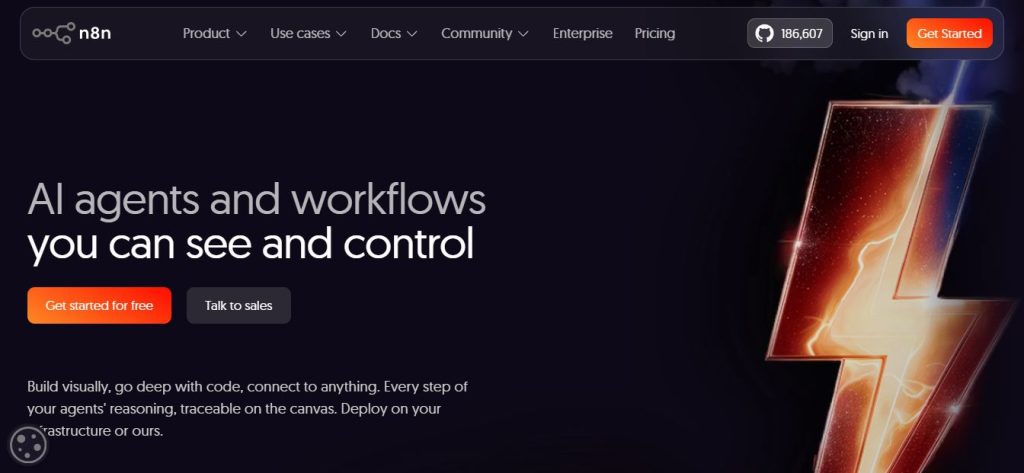
For WordPress site owners running on VPS hosting or dedicated servers — or those handling sensitive customer data — this is a meaningful advantage.
Setting Up n8n With WordPress: What’s Possible Without Writing Code
n8n connects to WordPress via the REST API and webhooks. It supports 350+ integrations natively, with a canvas-based visual editor similar to Make. Self-hosted setup requires basic server access (SSH), but once running, the day-to-day workflow building is genuinely no-code.
When to Choose n8n Over Zapier or Make
- You need unlimited automation runs without hitting a monthly task cap
- You prefer data to stay within your own infrastructure
- You’re comfortable with a one-time setup on a VPS or cloud server
- You’re looking to scale automation without scaling SaaS subscription costs
For teams evaluating enterprise-grade automation options, comparing n8n alongside best low-code integration platforms gives a fuller picture of where self-hosted fits.
The No-Code Automation Stack Checklist Before You Pick a Tool
Before committing to any platform, run through this quick check:
5 Questions to Ask Before Committing to Any Automation Platform
- Do the tools I use today (CRM, email, forms, WooCommerce) have native connectors on this platform?
- How many tasks per month do I realistically need — and does the free/starter tier cover it?
- Do I need the automation to stay inside WordPress, or is an external platform fine?
- How complex is my workflow logic — single-step or multi-branch?
- Is data privacy a concern that requires self-hosted or enterprise-tier data handling?
Checklist: Is Your WordPress Site Ready for Automation?
- WordPress REST API is enabled (default in WP 5.x+)
- Contact forms are set up with a reliable plugin (Gravity Forms, WPForms, CF7)
- WooCommerce webhooks are configured (if applicable)
- Admin email accounts are active and monitored
- Hosting environment supports outbound API requests (not blocked by firewall)
Before automating anything, verify your site health. A site with broken forms, outdated plugins, or misconfigured webhooks will produce broken automations. smartphp.net’s site health and WordPress admin guides are a useful pre-automation checkpoint if you want to make sure your foundation is solid before wiring anything up.
What to Automate First (Start Small, Scale Smart)
Start with one workflow that you do manually more than twice a week. Most site owners find the highest ROI in:
- New subscriber welcome sequences
- Contact form → CRM sync
- New post → social media notification
For businesses that also manage broader social promotion, an social media marketing panel service can be used alongside these automated workflows to support selected visibility and engagement goals.
Common Setup Mistakes That Break Workflows on Day One
- Skipping test mode: Always test with dummy data before activating
- Ignoring error notifications: Set up email or Slack alerts for failed tasks
- Over-automating too early: Complex multi-step workflows break in unpredictable ways — build simple first
- Not accounting for API rate limits: Especially important on free plans
Quick Wins vs. Long-Term Automation Strategy for WordPress Sites
3 Automation Wins You Can Set Up in Under 30 Minutes
- Contact form → Slack notification (Zapier, free tier, 5 minutes)
- New WordPress post → Buffer/LinkedIn share (Zapier or Make, 15 minutes)
- WooCommerce order → Google Sheets log (Make, free tier, 20 minutes)
To save even more time, you can create engaging captions and hashtags using an social media hashtag generator before automatically publishing them across your social channels. These don’t require advanced logic. They’re single-trigger, single-action workflows — and they immediately remove tasks you’re doing manually right now.
What a Fully Automated WordPress Admin Routine Looks Like After 90 Days
After 90 days of building and refining automations:
- New leads are routed, tagged, and in your CRM before you check your inbox
- Post publishing triggers a full content distribution sequence without a single manual step
- WooCommerce orders update your inventory sheet and trigger fulfilment notifications automatically
- Weekly site reports land in your inbox without you generating them
The goal isn’t to automate everything at once. It’s to systematically eliminate the repetitive tasks that dilute your focus each week.
For step-by-step guides on building these no-code WordPress workflows from scratch, smartphp.net covers the full implementation process — from webhook setup to multi-step automation builds — in guides written specifically for non-developer site admins.
The WordPress Automation Audit — Find the Exact Tasks Bleeding Your Time Every Week
(Most automation content skips this step entirely. This is where the real ROI lives.)
How to Map Your Repetitive Admin Tasks Into an Automation Opportunity List?
Open a spreadsheet. List every task you perform on your WordPress site more than once a week. Don’t filter — just list. Include things that feel “too small” to automate. Small tasks that happen daily often have higher ROI than large tasks that happen monthly.
The 3-Column Audit Sheet: Task → Trigger → Expected Output
| Task | Trigger Event | Expected Automated Output |
|---|---|---|
| Add new subscriber to Mailchimp | Form submission | Contact added + welcome email sent |
| Log WooCommerce order | Order placed | Row added to Google Sheet |
| Notify team of new enquiry | Contact form received | Slack message to #sales channel |
| Update CRM on user registration | New WP user created | CRM contact created with role tag |
| Push new post to social | Post status = Published | Buffer post scheduled |
Build this sheet before choosing a tool. The tool choice should follow the task list — not the other way around.
Prioritizing High-ROI Automations: Frequency × Time Cost Formula
A simple way to prioritise:
Priority Score = Weekly Frequency × Minutes Per Manual Task
A task you do 5 times a week that takes 4 minutes each = score of 20. Automate high-score tasks first. Tasks with a score under 5 can wait.
Where to Start After Your Audit Is Done (Tool Selection Decision Tree)
- All tasks involve only WordPress and external SaaS tools? → Start with Zapier or Make
- Most tasks involve WordPress-specific plugins (LMS, WooCommerce, memberships)? → Start with Uncanny Automator
- You need deep WordPress event access with external triggers? → Add WP Webhooks as middleware
- Data privacy or unlimited tasks matter most? → Evaluate n8n self-hosted
FAQs: No-Code Automation for WordPress Beginners
Yes. Tools like Zapier and Uncanny Automator are designed for users with zero coding knowledge. The interface is visual, and most platforms offer pre-built templates to get started without building from scratch.
No. External automation tools like Zapier and Make operate independently of your WordPress server. They call your site’s API in the background. The only exception is heavily polling-based integrations, but most modern tools use webhooks (push-based), which have no performance impact.
External platforms like Zapier and Make receive only the data you explicitly pass through your workflows. They do not have access to your WordPress database or admin panel. For maximum data control, WP Webhooks (self-contained) or n8n (self-hosted) keeps data within your own infrastructure.
Wrapping Up: Your WordPress Site Shouldn’t Need You for Routine Work
No-code automation isn’t a trend — it’s a practical operating shift for anyone managing a WordPress site without a dev team. The five tools covered here represent different entry points:
Key Takeaways:
- Zapier — Best for quick wins with 6,000+ app connections
- Make — Best for complex, visual multi-step workflows
- WP Webhooks — Best for precise WordPress-native event detection
- Uncanny Automator — Best for WordPress plugin ecosystem automation (WooCommerce, LMS, memberships)
- n8n — Best for unlimited tasks and full data control via self-hosting
Start with the automation audit. List your most time-consuming recurring tasks, score them by frequency and time cost, and pick one workflow to build this week. A single working automation often shifts how you think about your site’s operations entirely.
Ready to go deeper? Explore smartphp.net’s no-code WordPress guides for step-by-step walkthroughs on setting up your first automation without touching a single line of code.