

Quick answer: WordPress MCP is how you let an AI assistant like Claude or Cursor take real actions on your WordPress site — draft a post, audit your content, fix a taxonomy — instead of just writing text about it. It works through two pieces: the Abilities API, which shipped in WordPress 6.9 core and gives your site a machine-readable list of what it can do, and the MCP Adapter, which exposes those abilities to AI clients using the Model Context Protocol. You can set it up three ways: install the official adapter plugin on a self-hosted site, switch on the built-in MCP server if you’re on a WordPress.com paid plan, or use a managed host that offers one-click activation. It genuinely works. It also hands an AI agent real permissions on your site, so read the security section before you connect anything to production.
What Is MCP (Model Context Protocol)?
MCP stands for Model Context Protocol. It’s an open standard, originally created by Anthropic, that gives AI models a structured way to talk to outside systems.
The problem it solves is specific. A large language model is good at writing about your website and bad at doing anything to it. Ask an assistant to build you a navigation menu and it understands the request perfectly — but it has no way to fetch your existing menus, see your pages, or save the result. It knows what you want and can’t reach the thing you want it done to.
MCP fixes the reaching part. Instead of a developer hard-coding every action an AI might need, MCP lets the AI client ask a system at runtime what it can do. The pattern is: discover what actions are available, inspect what each one needs, then execute. And execution isn’t silent — the agent asks your permission before it makes a request, and the data that comes back is what gets added to the model’s context. You stay in the loop by design.
What Is WordPress MCP?
WordPress MCP is the WordPress implementation of that protocol — the layer that makes your site’s functionality visible and executable to AI agents.
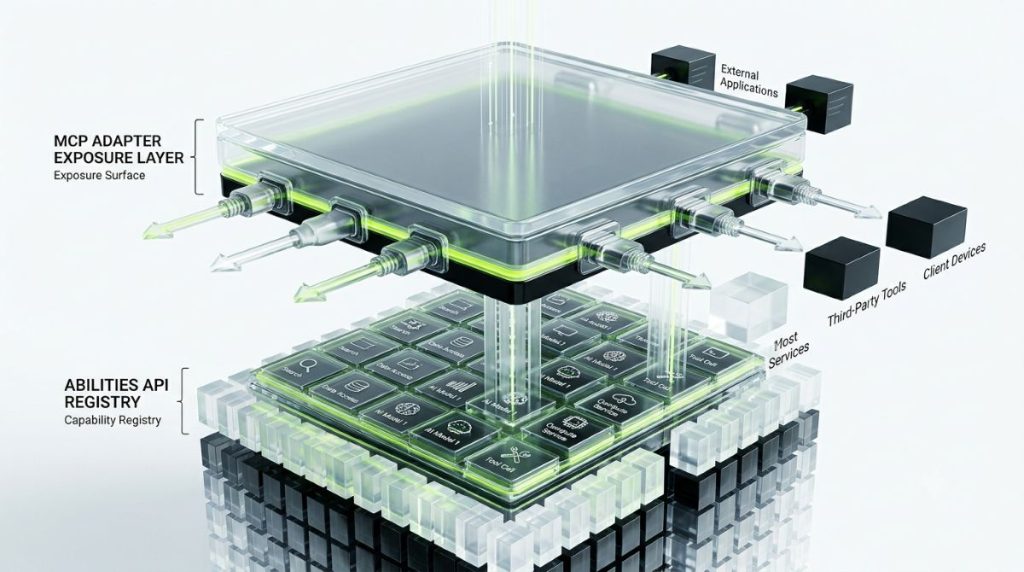
It arrived in two steps, and understanding the split is what makes the rest of this guide make sense.
The Abilities API came first. It shipped in WordPress 6.9 core in December 2025, and it gives WordPress a standardised way for core and plugins to declare what they can do. Each ability is typed, discoverable, and permissioned, and they all live in a registry at /wp-json/wp-abilities/v1/. Think of it as a menu of your site’s capabilities, written so a machine can read it. If you’ve worked with WordPress APIs as an admin before, it will feel familiar — the difference is that this registry is built to be discovered rather than documented. On its own it doesn’t talk to any AI — it just describes.
The MCP Adapter came second, released in February 2026. It takes whatever abilities are registered on your site and exposes them as MCP tools that an AI client can find and run. The Abilities API says what your site can do; the adapter is what lets an agent actually do it.
Both are part of what WordPress calls its AI Building Blocks initiative, and the framing matters: WordPress 6.9 didn’t add AI features you can see in the dashboard. It made WordPress legible to AI systems. The visible tools get built on top, by plugins and by you.
How WordPress MCP Actually Works
Walk through a real request and the mechanics become clear.
You ask an AI client — Claude Desktop, say — to draft a post about your new pricing page. The client checks whether it has MCP tools available for your site, and finds the ones your adapter exposes. It inspects the “create post” tool to see what that ability expects. Then it asks you to approve the action.
Once you approve, the request goes to your site. WordPress checks the permissions attached to that ability against your user account, saves the draft, and returns the post ID. Nothing was bolted on: the ability used your existing capability checks, the same ones that decide whether you can publish in wp-admin.
That’s the whole loop — discover, inspect, execute, with a permission gate at both ends. It works the same way for reading as for writing. An agent auditing your content is calling read abilities to pull posts, categories, and media; an agent fixing a taxonomy is calling write abilities that respect whether your role is allowed to edit terms.
The Three Routes to WordPress MCP: Adapter, Plugin, or Hosted Server
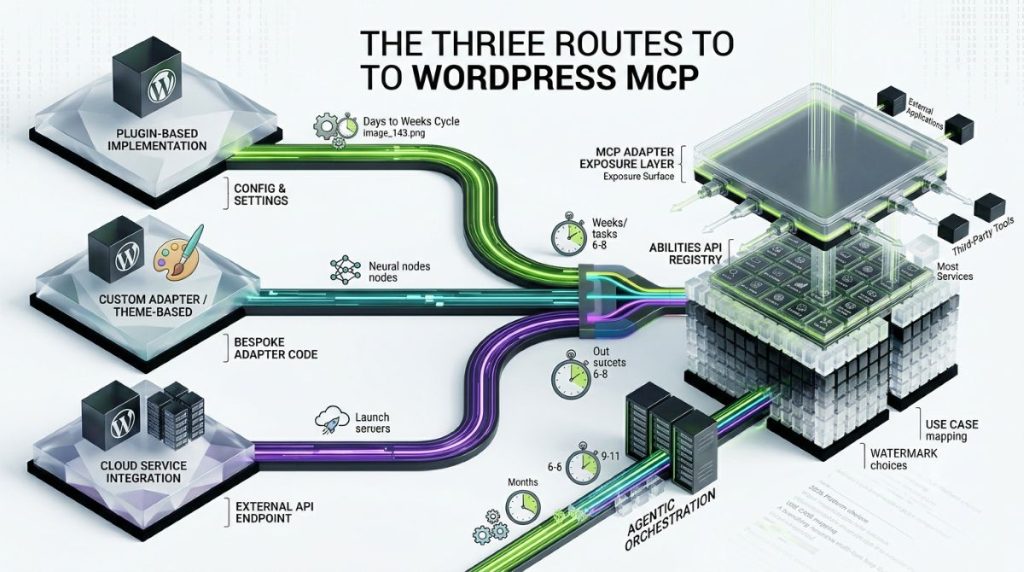
Search for WordPress MCP and you’ll hit three overlapping things with confusingly similar names. Here’s the honest map, because picking the wrong one wastes an afternoon.
The MCP Adapter (WordPress/mcp-adapter) — the canonical route. This is the official package, and it’s where the WordPress project is putting its effort. You can install it as a plugin or pull it into your own plugin as a Composer dependency. It requires WordPress 6.9 or newer, since that’s where the Abilities API lives. If you self-host and you’re starting now, start here.
The older Automattic/wordpress-mcp plugin — being deprecated. This came earlier and you’ll still find it ranking and referenced. Its own README now says it’s being deprecated in favour of the adapter, which is becoming the canonical plugin and Composer package for MCP in WordPress. It did useful work — dual STDIO and HTTP transports, JWT tokens with a React management dashboard, JSON-RPC endpoints — and none of that is a reason to build on it today. Migrate if you’re on it; don’t adopt it if you’re not.
A hosted or managed MCP server — the no-setup route. WordPress.com includes a built-in MCP server on paid plans, with no plugin to install at all. Managed hosts are doing the same thing: InstaWP, for instance, lets you switch MCP on for a site from its dashboard, installs the plugin for you, and generates the tokens automatically. If you don’t want to touch Composer or a config file, this is the shortest path to a working WordPress MCP server.
One more piece worth knowing about: a companion plugin called Enable Abilities for MCP registers a large set of content-management abilities and gives you an admin screen to toggle each one on or off. It ships 58 abilities across 13 categories, including WooCommerce, custom post types, and integrations for Yoast, Rank Math, and SEOPress. It needs WordPress 6.9 and the adapter to be useful, and its write abilities respect WordPress capabilities. For most site owners this is the practical way to get a useful toolset without writing any abilities yourself — and it slots in alongside the other no-code plugins worth running on a modern site.
How to Set Up the WordPress MCP Adapter (Self-Hosted)
This is the self-hosted path, start to finish.
Step 1: Check your WordPress version. The adapter requires WordPress 6.9 or newer, because that’s the release that brought the Abilities API into core. Check under Dashboard → Updates. If you’re on 6.8, you can still run the adapter, but you’ll need to add the standalone abilities-api package alongside it — upgrading is the cleaner move.
Step 2: Install the adapter plugin. Download the latest mcp-adapter.zip from the project’s GitHub Releases page and install it like any other WordPress plugin, or do it from the command line with WP-CLI:
wp plugin install https://github.com/WordPress/mcp-adapter/releases/latest/download/mcp-adapter.zip --activateIf you’re a plugin developer building MCP into your own plugin rather than running it standalone, install it as a dependency instead:
composer require wordpress/mcp-adapterStep 3: Let the default server come up. You don’t have to configure a server by hand. Once the adapter initialises, it creates a default MCP server that exposes the abilities registered on your site. It can manage multiple servers if you need separate configurations later, but the default is enough to start.
Step 4: Give it some abilities to expose. A fresh install has very little registered, so an AI client will connect and find almost nothing useful. This is the step people skip and then assume the setup failed. Install Enable Abilities for MCP and use its settings screen to switch on the abilities you want — all of them are enabled on first activation, so the real work is turning off the ones you don’t want reachable.
Step 5: Decide on your transport. The adapter supports HTTP and STDIO. STDIO suits local development, where the client runs on the same machine. HTTP is what you’ll use for a site that lives on a server somewhere. Your AI client’s configuration will ask for one or the other.
Step 6: Test on staging first. Point your client at a staging copy before production. You’re about to give an AI agent write access to a live site, and a staging environment is the cheapest possible insurance.
One practical warning: if more than one plugin on your site uses the adapter, use the Jetpack Autoloader to avoid version conflicts between the bundled copies.
How to Enable MCP on WordPress.com
If your site is on WordPress.com, skip everything above. There’s a built-in WordPress MCP server and no plugin to install.
Step 1: Confirm you’re on a paid plan. MCP access is available on all WordPress.com paid plans, not the free tier.
Step 2: Enable MCP on your account from your WordPress.com settings.
Step 3: Point your AI client at the server URL:
https://public-api.wordpress.com/wpcom/v2/mcp/v1Step 4: Authorise in the browser. WordPress.com’s MCP server uses OAuth 2.1, so the connection and authorisation happen through a normal browser login. There are no API keys to generate, no tokens to paste into a config file, and no extra software to install.
The permission model here is genuinely good: your AI client inherits the permissions of the logged-in WordPress user, nothing more, and you can revoke that access whenever you want. WordPress.com also states that no data passes between its MCP server and the LLM outside your control, and that it isn’t used for training.
How to Connect Claude, Cursor, and VS Code
Once a WordPress MCP server is running, connecting a client is the easy part. Claude Desktop, ChatGPT, VS Code, and Cursor all speak MCP — and if you’re weighing up the wider landscape of AI agent tooling, the same protocol is what most of it now runs on.
Server management tools like CtrlOps use the same MCP standard to connect AI terminals to documentation sources, code repositories, and local files, so the protocol is spreading well beyond content management into infrastructure work too.
The pattern is the same in each: open the client’s MCP settings, add a server, give it your endpoint, and authorise. On WordPress.com you paste the server URL and complete the browser login. On a self-hosted site you point the client at your adapter’s HTTP endpoint and authenticate against your site. (If you’re picking a client and cost matters, our breakdown of Cursor’s plans covers what each tier includes.) For local development, STDIO lets the client talk to a WordPress install on the same machine without exposing anything over the network.
After connecting, ask the client what tools it has. A healthy connection returns a list of your site’s abilities. An empty list almost always means step 4 of the self-hosted setup got skipped — the server is up, but nothing has been registered for it to expose.
Worth setting expectations: the experience differs by client, and it changes fast. Treat the exact configuration screens as a moving target and the underlying pattern — endpoint plus authorisation plus a tool list — as the stable part.
What You Can Actually Do With WordPress MCP
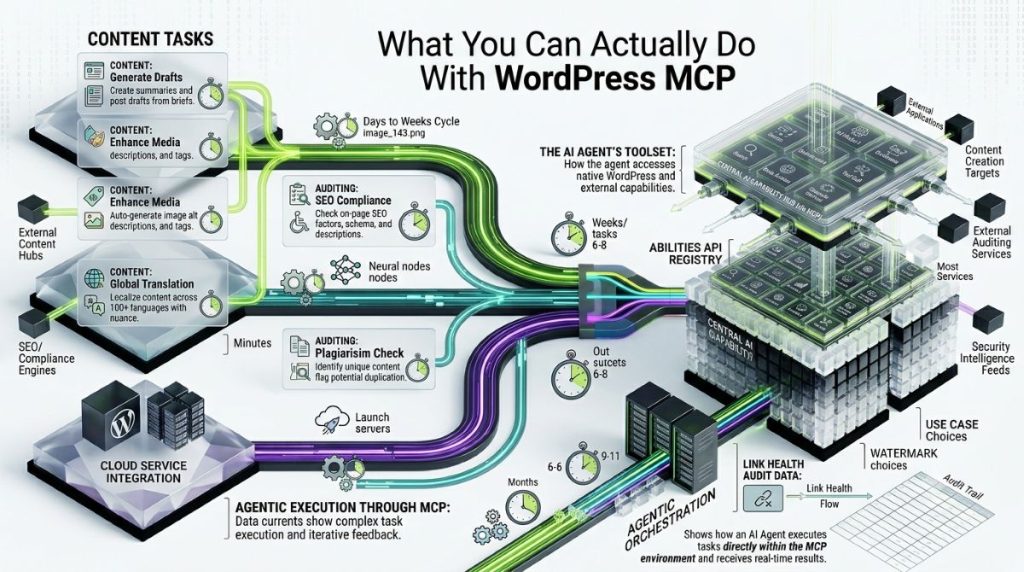
The useful work falls into three buckets.
Content work. Drafting and editing posts, restructuring categories and tags, updating page copy, tidying media. This is where MCP earns its place fastest, because the agent can write a draft and file it in the right place in one motion instead of handing you text to paste into the editor yourself.
Auditing and reporting. Reading across your content to find gaps, thin posts, missing metadata, or inconsistent taxonomies, then reporting back. Read-only abilities make this low-risk and immediately useful — you’re asking questions about your own site and getting answers grounded in the actual database rather than a guess.
Diagnostics and admin. Investigating errors, checking plugin and theme state, generating reports. If a plugin throws an error code, an MCP-connected client can look into your site’s actual state rather than reciting generic documentation at you. Depending on the abilities you enable, users, plugins, and WooCommerce data are reachable too.
What it’s not is an autopilot. Every one of these still runs through your permission checks and your approvals. The gain is that the boring middle part — fetching, matching, filing — stops being your job. It overlaps with what WordPress automation tools already do, with one difference: you describe the outcome instead of building the workflow, much like how an AI marketing agency uses AI-powered systems to streamline repetitive marketing tasks and execute workflows more efficiently.
Is WordPress MCP Safe and Secure?
This is the question that deserves a real answer rather than reassurance, so here it is: MCP is safe enough to use deliberately and not safe enough to switch on carelessly. The reason is structural. You are giving an AI agent permission to take real actions on your site, and the agent decides at runtime which action to take.
Prompt injection is the main risk. OWASP classifies prompt injection as the top security risk for LLM applications. In a chat window, a successful injection produces a bad answer. In an MCP setup, it can produce a real action, because the agent already holds authorised access to your tools.
The harder variant is indirect prompt injection — malicious instructions hidden inside content the agent retrieves rather than something you typed. A document, a web page, a tool response. Because there’s no suspicious user input to spot, it’s meaningfully harder to detect. This isn’t theoretical: in May 2025, researchers manipulated an AI agent through injection concealed in public GitHub issues to reach private repositories, which is a reminder that even official, well-built servers can be turned against their users.
Tool poisoning is the other one to know. An attacker manipulates a tool’s metadata or description so the agent chooses a compromised tool. Descriptions can change after installation, so a server that looked fine when you connected it isn’t guaranteed to stay that way.
And the dullest risk is the most common: over-broad credentials. If a token is stolen or scoped too widely, nobody needs to manipulate the model at all.
The mitigations are well established, and WordPress does some of this for you:
- Least privilege. Enable only the abilities you actually need. This is exactly what the Enable Abilities for MCP toggle screen is for, and the reason its default of everything-on deserves a pass through before you connect anything.
- Lean on WordPress’s own permission model. The adapter maintains security through permission callbacks and user authentication, and write abilities respect WordPress capabilities. An agent acting as a subscriber can’t do administrator things.
- Require confirmation for destructive actions. Risk-based consent is the accepted standard — light approval for reads, explicit confirmation for anything that deletes, publishes, changes settings, or sends something outward.
- Prefer OAuth over long-lived tokens where you have the choice. WordPress.com’s browser-based OAuth 2.1 flow with revocable, user-inherited permissions is a better default than a static token in a config file.
- Log and review. Keep records of which tools were discovered and invoked, so you can tell afterwards whether an action came from you, the model, or something that manipulated it.
- Isolate what you self-run. If you’re running MCP servers yourself, container isolation limits what a compromised server can reach.
- Test on staging. Repeated because it’s the single highest-value habit here.
Read that list and the honest summary is: the protocol isn’t the weak point, the permissions you grant are. Grant narrowly, confirm destructive actions, and MCP on WordPress is a reasonable thing to run.
Limits and What to Watch
A few things to keep in mind before you plan work around this.
The ecosystem is young and moving. The adapter reached stable release in early 2026, the older plugin is on its way out, and client configuration screens are changing release to release. Anything you write down today about exact setup steps has a short shelf life — the architecture is stable, the surface details are not.
Installing the adapter is not the same as being ready to work. You still choose which abilities to expose, pick a transport, handle authentication, and decide where AI-driven changes are allowed to run. Getting to “it runs” takes minutes. Getting to “I trust it against production” takes longer.
And coverage depends entirely on what’s registered. Most plugins haven’t registered any abilities yet, which means an agent can’t see or touch them regardless of how well your adapter is configured. That improves as plugin authors adopt the Abilities API, but right now the honest expectation is core content operations plus whatever your enabled ability set adds.
Frequently Asked Questions
MCP is the Model Context Protocol, an open standard that lets AI agents discover and execute actions on external systems. In WordPress, it’s implemented through the Abilities API in 6.9 core, which declares what your site can do, and the MCP Adapter, which exposes those abilities to AI clients as callable tools.
The MCP Adapter (WordPress/mcp-adapter) is the canonical, actively developed package, available as a plugin or a Composer dependency. The older Automattic/wordpress-mcp plugin is being deprecated in favour of it. If you’re starting now, use the adapter.
Three routes. On a self-hosted site running WordPress 6.9+, install the MCP Adapter plugin, enable the abilities you want to expose, choose HTTP or STDIO transport, and connect your AI client. On WordPress.com paid plans, enable MCP and point your client at the built-in server URL. On a managed host with one-click MCP, switch it on from the dashboard.
The MCP Adapter requires WordPress 6.9 or newer, because that release brought the Abilities API into core. It can run on 6.8 if you add the standalone abilities-api package, but upgrading is simpler.
It’s safe when configured deliberately. The protocol relies on your existing WordPress permissions, and the adapter enforces permission callbacks and user authentication. The real risks are prompt injection — including indirect injection through content an agent reads — tool poisoning, and over-broad credentials. Enable only the abilities you need, require confirmation for destructive actions, prefer OAuth over static tokens, log tool use, and test on staging before production.
Claude Desktop, ChatGPT, VS Code, and Cursor all support MCP and can connect to a WordPress MCP server.
Yes. The MCP Adapter is free and open source, so a self-hosted site on WordPress 6.9+ can run MCP at no cost. WordPress.com’s built-in MCP server requires a paid plan.
Whatever abilities you expose. Commonly: create and edit posts, manage categories and tags, handle media, audit content, read site state for diagnostics, and — with the right ability set — reach users, plugins, and WooCommerce data.
Where to Start
If you’re on WordPress.com with a paid plan, enable MCP, paste the server URL into Claude or Cursor, and you’ll be running in a few minutes. If you self-host, get to WordPress 6.9, install the MCP Adapter, add Enable Abilities for MCP, and switch on a small read-only set of abilities to begin with. Connect a client, ask it to audit some content, and see what it does before you give it a single write permission.
That’s the sane path: start read-only, start on staging, widen access only once you’ve watched it behave. WordPress MCP is one of the more genuinely useful things to happen to WordPress administration in years, and the reason to be careful with it is the same reason it’s useful — the agent can really do things.