

Imagine having the power to supercharge your website development process with just a few clicks. In the fast-paced world of web design, efficiency is everything. Whether you’re a seasoned developer or just starting out, the right tools can make all the difference in delivering a seamless WordPress experience. This is where the magic of WordPress Chrome Extensions comes into play, turning your browser into a powerhouse of productivity. These extensions not only enhance your workflow but also ensure that your projects are executed with precision and speed.
Consider this: over 43% of websites globally are built on WordPress, making it the world’s leading content management system. As its popularity skyrockets, so do the demands on developers to create better, faster, and more user-friendly websites. With these 10 must-have WordPress Chrome Extensions, you can streamline tasks that usually require tedious back-and-forth between multiple tabs and tools. Embracing these extensions means embracing efficiency and unlocking new levels of creativity in your development process. Ready to take your website building to the next level? Let’s dive in.
The “Smart Admin” Browser Setup
Working outside the traditional WordPress backend is the hallmark of a truly “Smart Admin.” Instead of logging into /wp-admin for every small change or check, savvy developers leverage WordPress Chrome Extensions to handle 80% of debugging and reconnaissance right in the browser. By avoiding bulky plugins and heavy database queries, you maintain a lean site while still accessing critical information instantly. Imagine spotting a CSS override, testing media queries, or identifying a caching configuration, all within seconds, without ever leaving the page. That’s the power of having the right toolkit at your fingertips.
Looking ahead to 2026, the role of a WordPress administrator evolves further. Beyond basic content edits, you’ll reverse-engineer competitors’ sites, analyze their performance metrics, and even test REST API endpoints on the fly. These forward-thinking techniques help you stay one step ahead, optimizing your own workflows based on real-world benchmarks. In essence, your browser becomes the nerve center of your development ecosystem, a workflow many modern website development company teams rely on to streamline WordPress management and debugging.
Category 1: Reconnaissance (Reverse Engineering)
In the reconnaissance phase, you’re gathering intelligence on hosting, caching, themes, and plugins without touching the WordPress dashboard. The goal is to reverse-engineer top-performing sites using powerful WordPress Chrome Extensions. These tools reveal backend details in an instant and show you how competitors achieve speed and functionality.
Whether you want to analyze your rival’s security setup or replicate a sleek design feature, these extensions provide clarity and inspiration, helping you build faster, more robust sites without guesswork.
1. Wappalyzer (The Stack Sniffer)
Wappalyzer is an indispensable WordPress Chrome Extension for any developer who needs a rapid snapshot of a site’s technology stack. Once installed, it sits quietly in your toolbar and instantly detects the hosting provider, server software, caching engine, analytics solutions, and third-party frameworks that a website uses. Instead of poring through source code or performing manual traceroutes, you get a neatly organized list of technologies at a glance. This insight is crucial when you’re evaluating performance bottlenecks or aiming to match a competitor’s speed, did they opt for Cloudflare’s edge caching or a managed WordPress host like Kinsta?
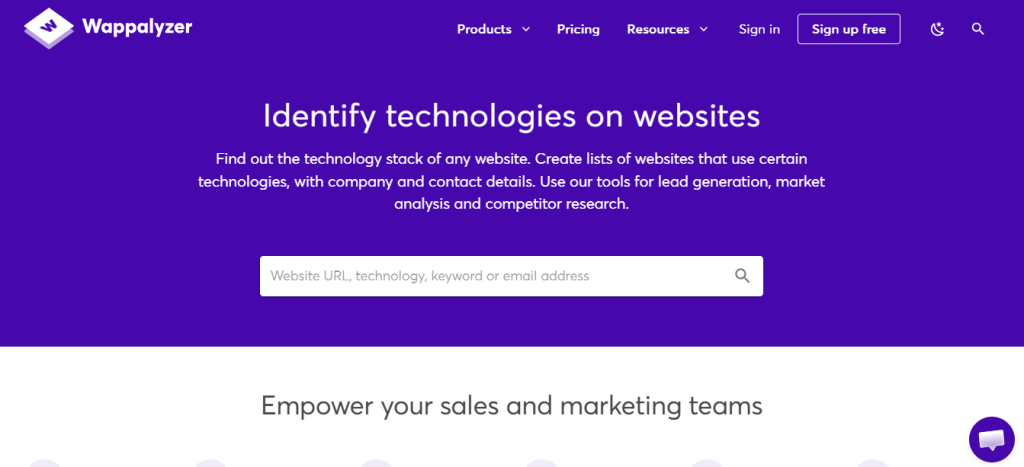
Beyond simple detection, Wappalyzer helps you make smarter infrastructure choices for your own projects. For instance, if you discover that a fast-loading site leverages WP Rocket alongside Cloudflare, you can test a similar setup to gauge its impact on your pages. By reverse-engineering proven configurations, you bypass trial and error and accelerate your optimization process. Wappalyzer’s combination of precision and convenience makes it a cornerstone in any collection of WordPress Chrome Extensions.
2. WordPress Theme Detector and Plugins Detector
The WordPress Theme Detector and Plugins Detector extension takes the guesswork out of replicating a design or feature you admire. With a single click, it identifies the active theme, whether GeneratePress, Astra, or a custom child theme, and lists all installed plugins. You’ll see everything from SEO and caching plugins to form builders and security tools. No more hunting through CSS files or plugin directories; this extension delivers clear results in seconds.
Armed with this knowledge, you can instantly source the exact tools powering a competitor’s site. If you love a gallery’s lightbox effect or a custom post-type layout, just note the plugin name and install it on your own site. This capability not only speeds up your development workflow but also ensures consistency in functionality and style. As part of your toolkit of WordPress Chrome Extensions, the Theme & Plugins Detector streamlines feature adoption and reduces hours of manual investigation.
Category 2: Frontend & Design Mastery
Designing a pixel-perfect website often involves diving into CSS, extracting brand assets, and validating responsive layouts without swapping devices. These WordPress Chrome Extensions simplify frontend tasks by exposing color codes, typography settings, and breakpoints directly in your browser.
From copying hex values to simulating screen sizes, these tools empower designers and developers to implement accurate, consistent styling across every page. No more toggling between Photoshop, code editors, and physical devices, your browser handles it all.
3. CSS Peeper (The Code-Free Inspector)
CSS Peeper is a visually oriented WordPress Chrome Extension designed for anyone who needs quick access to a webpage’s style details without digging through source code. With this tool, you can extract colors, fonts, images, and spacing rules by simply hovering over elements. It presents a clean UI that lists brand color palettes, font families, and asset URLs, eliminating the need to decipher complex CSS selectors in DevTools. For designers working on a client’s site, CSS Peeper delivers the exact hex codes and font specifications in two clicks, saving time and reducing errors when recreating styles in page builders or style sheets.
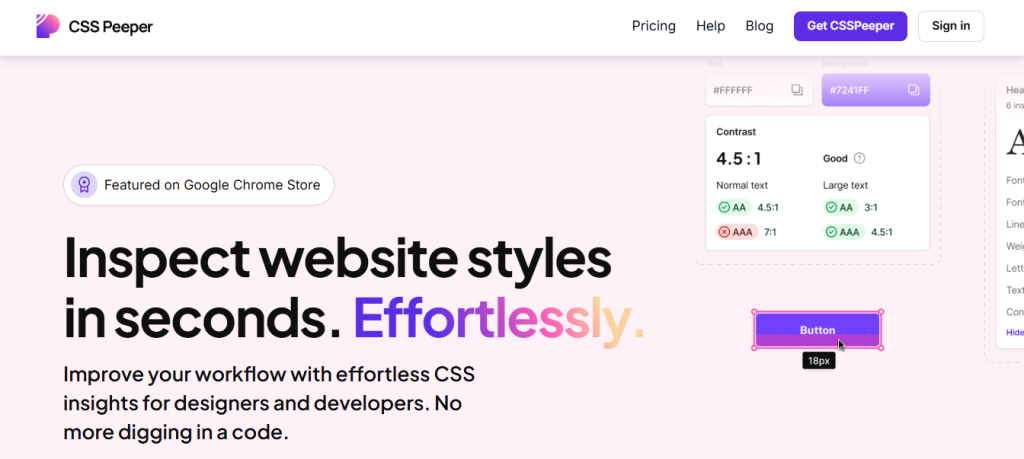
Moreover, CSS Peeper’s asset manager allows you to download background images, icons, and SVGs effortlessly. Instead of manually locating files in HTML or network tabs, you get a curated gallery of all media assets used on the page. This seamless workflow makes recreating or adapting designs faster and more accurate, cementing CSS Peeper’s place among essential WordPress Chrome Extensions for frontend mastery.
4. Window Resizer (The Mobile Reality Check)
Window Resizer is a straightforward yet powerful extension that forces your browser window into exact dimensions for various devices, such as iPhone 15 Pro, iPad Air, or custom breakpoints. Rather than juggling your smartphone or tablet, you can preview responsive layouts directly on your desktop. This accelerates QA by letting you spot CSS issues, flexible grid breaks, or font scaling problems in real time. You simply click the extension, choose a preset resolution, and watch your design adapt instantly.
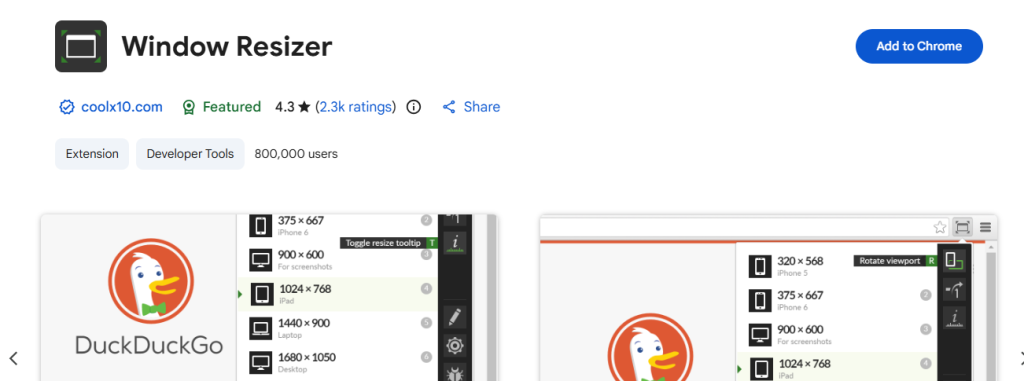
For developers integrating responsive frameworks or tweaking media queries, Window Resizer provides a controlled environment to validate visual consistency. It supports landscape and portrait modes, custom resolution lists, and even multiple simultaneous viewports for side-by-side comparisons. As part of your arsenal of WordPress Chrome Extensions, it ensures your site looks perfect on every screen size without leaving your desk.
5. ColorZilla (The Eyedropper)
ColorZilla is a popular WordPress Chrome Extension that functions as an advanced eyedropper and gradient analyzer. With a single click, you can sample any pixel on a webpage to retrieve its exact hex or RGB color code. Whether you’re trying to match an obscure shade from a competitor’s header or extracting a subtle background tint, ColorZilla provides instant accuracy. Its integrated color picker also lets you fine-tune sampled hues, convert between formats, and copy values to your clipboard for direct use in your CSS or page builder.
Beyond simple sampling, ColorZilla includes a DOM color analyzer which scans all colors used on the page and generates a palette, making it easy to maintain brand consistency. You can also preview CSS gradients, analyze opacity layers, and inspect color stops without leaving your design environment. As a staple among WordPress Chrome Extensions, ColorZilla ensures that your color choices remain precise and on-brand across every element of your site.
Category 3: Performance & SEO
Optimizing for speed and search visibility is crucial in today’s competitive landscape. A set of WordPress Chrome Extensions lets you inspect meta tags, clear caches, and detect broken links in real time, without digging into plugin settings or server consoles.
By keeping a close eye on performance metrics and SEO elements directly in your browser, you can make improvements faster and more confidently. These tools help you deliver lightning-fast, search-optimized pages that rank higher and engage visitors.
6. Detailed SEO Extension (The X-Ray)
The Detailed SEO Extension is a powerful WordPress Chrome Extension that exposes critical on-page SEO elements at a glance. Once activated, it extracts the Title tag, Meta Description, H1–H6 headings, and any Schema.org markup present on the page. Instead of viewing page source or switching to Yoast or RankMath dashboards, you get a clear, organized report showing which tags are present, missing, or duplicated. This instant feedback helps you verify that your WordPress SEO plugin is outputting correct tags and that search engines can properly interpret your page.
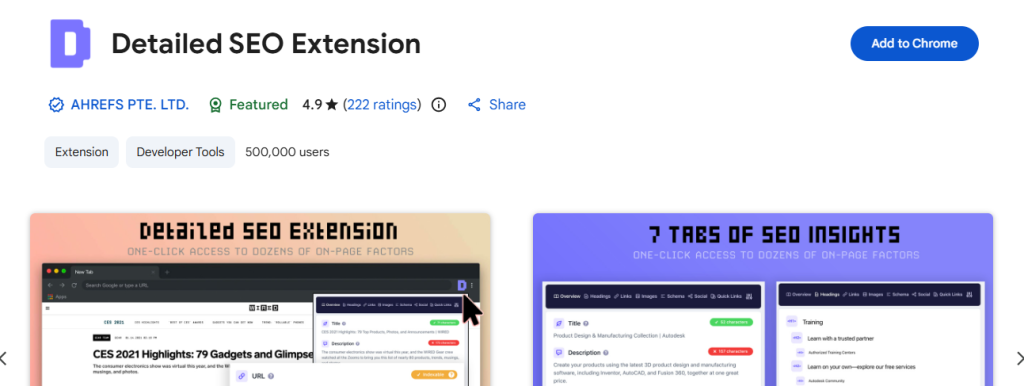
Additionally, the extension highlights potential issues like missing alt attributes, overlong meta descriptions, and improper heading hierarchies. By catching these errors before they impact rankings, you streamline your optimization workflow. The Detailed SEO Extension saves time on audits and ensures that every page you publish adheres to best practices, making it an essential component of your WordPress Chrome Extensions toolkit.
7. Clear Cache (The Frustration Saver)
One of the most frustrating parts of CSS or template tweaks is not seeing your changes reflect immediately on the live site. Clear Cache is a WordPress Chrome Extension that solves this by emptying your browser’s local cache with one click. Whether you’ve updated styles, swapped images, or tweaked JavaScript, this extension ensures you’re always viewing the most recent version of your site without manually digging through settings menus or using incognito mode.
Clear Cache also offers shortcuts for clearing cookies and storage for the current domain, making it easy to test login flows, membership scripts, or personalized content. By integrating it into your daily workflow, you eliminate caching headaches and move faster through design and development iterations. No more false negatives or stale pages, just instant visibility into your latest work.
8. Check My Links (The Broken Link Hunter)
Check My Links crawls the current page and highlights broken links in red, saving you from embarrassing 404 errors on published posts. As soon as you activate it, the extension scans every anchor tag and flag any URLs that return client or server errors. This quick QA pass ensures that internal navigation, affiliate links, and external resources all function correctly before you hit “Publish.”
For content-heavy sites, affiliate marketers, and SEO specialists, running Check My Links on newly published articles is a no-brainer. It helps you maintain link integrity, avoid penalization from search engines, and improve user experience. Integrating this tool into your suite of WordPress Chrome Extensions guarantees that your site remains professional and fully operational at all times.
Chrome Extensions guarantees that your site remains professional and fully operational at all times. Additionally, regularly auditing links and third-party resources can help reduce potential Cybersecurity risk, as broken or compromised links can sometimes redirect users to malicious pages.
Category 4: The “Headless” & API Builder
Headless WordPress setups and no-code integrations rely heavily on REST API calls and clean data formats. A couple of key WordPress Chrome Extensions streamline the process of inspecting JSON payloads and testing authenticated endpoints directly in your browser.
With these tools, you can verify data structures, troubleshoot authorization issues, and connect WordPress to external apps without writing custom scripts, making headless development faster and more reliable.
9. JSON Formatter (The Data Translator)
JSON Formatter is a must-have WordPress Chrome Extension for anyone working with the WordPress REST API. Instead of staring at raw, minified JSON responses, this tool transforms the output into a collapsible, color-coded tree structure. You can expand and collapse nodes, search for specific keys, and copy values with ease. This clarity is essential when connecting WordPress data to no-code platforms like FlutterFlow, Make.com, or Zapier, as you need to confirm that your endpoints return the expected fields and data types.
Whether you’re fetching posts, users, or custom post types, JSON Formatter helps you validate query parameters, inspect nested meta fields, and debug error messages on the fly. By reducing friction in your headless workflow, it accelerates integration and ensures your data flows seamlessly between WordPress and third-party services.
10. ModHeader (The API Tester)
ModHeader is a versatile WordPress Chrome Extension that lets you modify HTTP request headers on the fly. This capability is invaluable when testing authenticated REST API calls with bearer tokens, custom user agents, or API keys. Instead of writing code or using separate API clients, you can inject headers directly in your browser and see how your WordPress endpoints respond in real time.
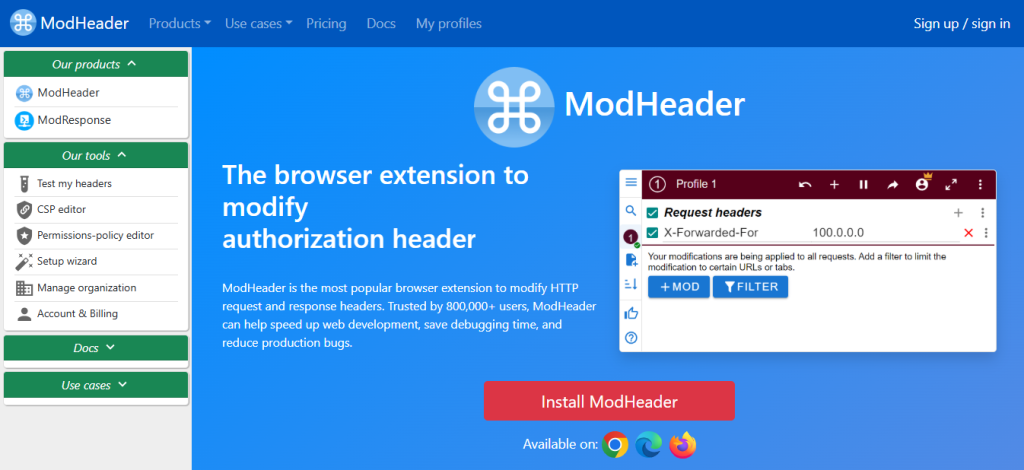
Use ModHeader to simulate different authentication scenarios, test CORS configurations, or add custom tracking parameters. The extension supports multiple profiles, so you can switch rapidly between development, staging, and production settings. By integrating API testing into your browser, ModHeader streamlines headless workflows and empowers you to troubleshoot authorization and cross-origin issues without leaving your desktop environment.
Category 5: Operations & Troubleshooting
Day-to-day WordPress operations often involve repetitive tasks, user training, and session troubleshooting. The right WordPress Chrome Extensions can automate documentation, simplify cookie management, and accelerate issue resolution without spinning up new tools.
From creating step-by-step guides to manipulating session cookies, these browser-based utilities keep your workflow lean and efficient, so you can focus on delivering value instead of fighting technical roadblocks.
11. Tango (The SOP Generator)
Tango is a game-changing WordPress Chrome Extension for generating standard operating procedures (SOPs) in seconds. As you click through any process, like uploading a new blog post or configuring a plugin, Tango automatically captures screenshots and assembles step-by-step instructions. You end up with a polished guide you can share with clients or team members, eliminating countless support emails and repetitive walkthroughs.
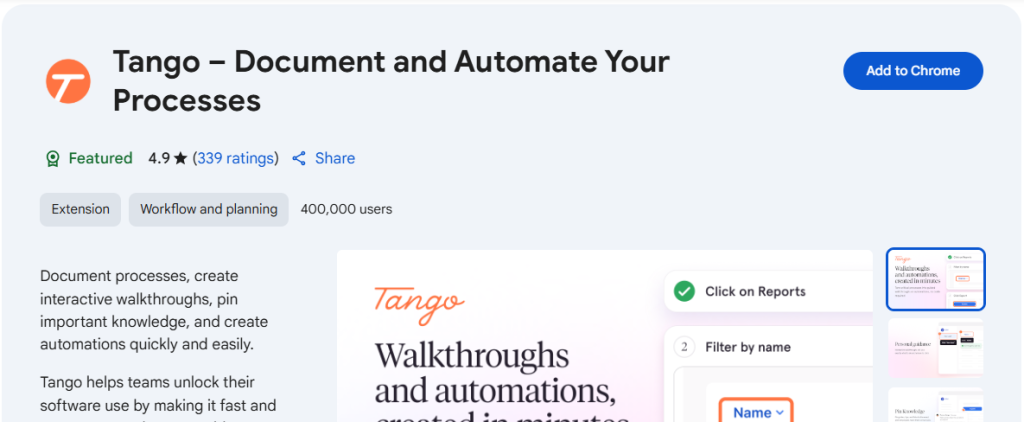
Whether you’re onboarding non-technical clients or documenting complex administrative tasks, Tango frees you from manual documentation drudgery. It exports to Markdown, Google Docs, or HTML, fitting seamlessly into your existing workflows. Tango revolutionizes how you train users and standardize procedures, making it an essential part of your toolkit of WordPress Chrome Extensions.
12. EditThisCookie (The Session Manager)
EditThisCookie is a lightweight WordPress Chrome Extension for inspecting, editing, and deleting browser cookies on the fly. This is particularly useful when troubleshooting WooCommerce cart sessions, membership logins, or localized content blocks. Instead of clearing all cookies or toggling incognito windows, you can target specific cookies related to authentication or personalization and adjust their values instantly.
By editing cookies directly, you can simulate different user roles, test expiration settings, or bypass front-end caching for specific sessions. This granular control accelerates debugging and reduces the need for staging environments. As part of your suite of WordPress Chrome Extensions, EditThisCookie ensures you maintain full visibility and control over user sessions during development and testing.
The “Smart Admin” Browser Profile Trick
One of the simplest yet most effective ways to maintain peak productivity with WordPress Chrome Extensions is to isolate them in a dedicated browser profile. Create a profile, named something like “WP Admin” or “Dev Tools”, and install only the extensions you need for site management, performance checks, and troubleshooting. This separation keeps your personal browsing sessions fast and private, free from the overhead of dozens of development add-ons.
Within your WP Admin profile, organize a universal bookmark bar that includes your site’s /wp-admin login, hosting control panel, CDN console, and DNS dashboard (e.g., Cloudflare). This one-click access hub slashes navigation time and keeps critical links front and center. For even greater efficiency, group your WordPress Chrome Extensions into folders or use Chrome’s built-in extension manager to toggle off less-used tools until needed.
By compartmentalizing your workspace, you reduce distractions and prevent cross-contamination between development and personal activities. Whether you’re answering client support tickets, running performance audits, or experimenting with a headless API, your dedicated profile remains optimized for speed, security, and focus. This browser profile trick is the final piece that turns a collection of powerful WordPress Chrome Extensions into a cohesive, high-performance admin environment.
Conclusion: Your Browser is Your New Dashboard
The paradigm shift is clear: logging into the WordPress backend for routine checks is no longer the most efficient route. By adopting these WordPress Chrome Extensions, your browser transforms into a fully featured control center, enabling you to design, debug, and optimize without leaving the page.
Start small by mastering the three extensions that address your biggest daily pain points, whether it’s CSS Peeper for design accuracy or Wappalyzer for competitor insights. From there, scale up to a complete Smart Admin toolkit that streamlines every aspect of your development workflow.
Embrace this new approach, and you’ll save time, reduce plugins, and operate with developer-level precision, all without writing a single line of code.
Frequently Asked Questions (FAQs)
Yes, if you leave them all running constantly. A “Smart Admin” pins the ones they use daily (like Clear Cache) and uses Chrome’s built-in extension manager to toggle off heavy tools (like Wappalyzer or Check My Links) until they specifically need them.
All the extensions listed here are highly rated and available in the official Chrome Web Store. However, always be cautious with extensions that request “Access to all data on all websites.” Never install an unverified extension from a third-party site.
While Chrome has the largest extension ecosystem, most of these tools (or exact equivalents) exist for Firefox and Microsoft Edge. Safari is more restrictive, which is why most WordPress developers and admins prefer Chrome or Edge for actual build work.
Many beginners install heavy WordPress plugins just to change fonts or colors because they don’t know what CSS their theme is currently using. CSS Peeper lets you inspect those styles visually so you can use the native WordPress Customizer to make the change without adding another plugin.